
Home / Faq
Service Calls: Monday –Friday, 8am –5pm EST
The client can open a service request by:
**If an emergency, please call the service department to ensure prompt response.
**Please note that Voysis reserves a 24-hour window to respond to service calls
Urgent service calls – AFTER HOURS:
To access your voicemail, press 5555 then Dial
SETTING UP VOICEMAIL FOR THE FIRST TIME
NOTE: An easier way to retrieve messages is to have them sent to your email inbox. Provided you have a multimedia PC, you can simply play the messages back as audio files.
*55 Direct Voicemail Transfer
Allows users to transfer a held call directly to a voice mailbox, that is, without using the CommPilot Call Manager. The call can be transferred to the user’s voice mailbox or to any other voice mailbox in the group. The Voice Messaging service or the Third Party Voice Mail Support service must be assigned to the user’s group.
*21Call Forwarding Always to Voicemail Activation
Allows users to redirect incoming phone calls to their voice mail.
#21 Call Forwarding Always to Voicemail Deactivation
Allows users to turn Call Forwarding Always To Voice Mail off. After deactivation, calls ring to the user’s phone unless the user has set up another service such as Call Forwarding Busy, Call Forwarding Busy To Voice Mail, Call Forwarding No Answer, or Call Management or Do Not
*40Call Forwarding Busy To Voicemail Activation
Allows users to redirect incoming phone calls to their voicemail when they are on the phone.
# 40Call Forwarding Busy to Voicemail Deactivation
Allows users to turn Call Forwarding Busy To Voicemail off. After deactivation, calls ring to the user’s phone unless the user has set up another service such as Call Forwarding Always, Call Forwarding Always To Voice Mail, Call Forwarding No Answer, or Call Management or Do Not Disturb.
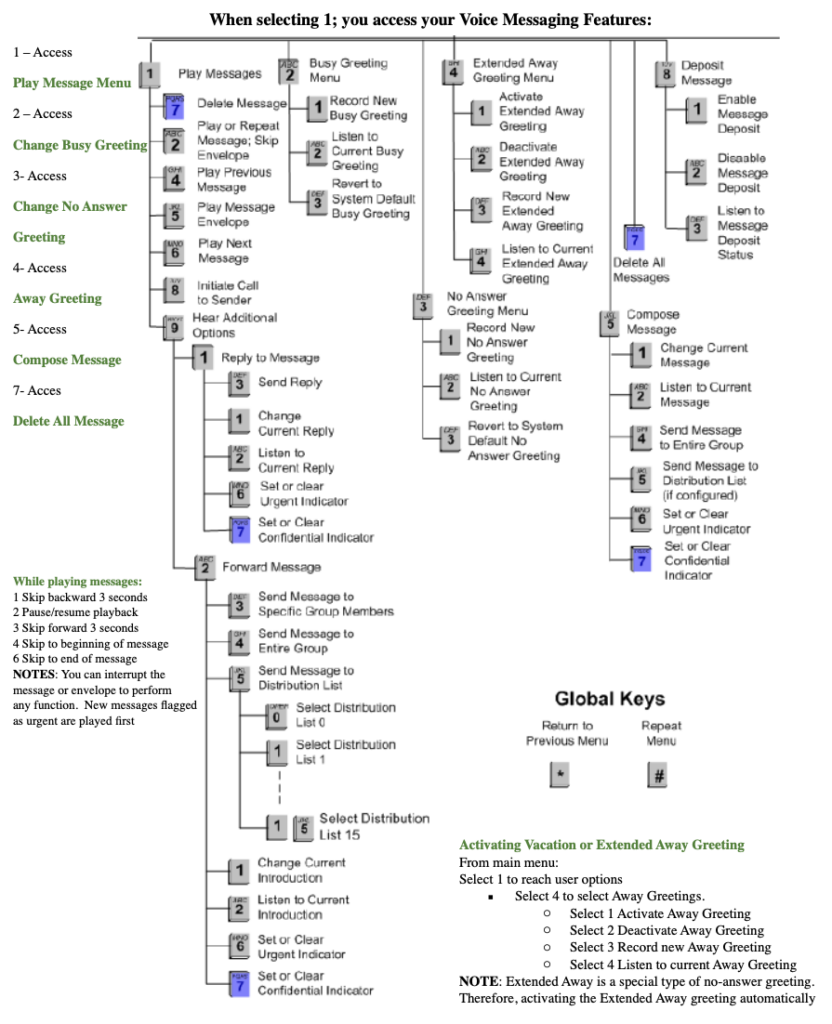
Call Forwarding: Allows users to redirect incoming phone calls to another phone number, extension or voicemail inbox. Call Forwarding options are customizable to accommodate the following user dispositions: No Answer, Busy, Not Reachable.
*72 Call Forwarding Always Activation
After dialing the assigned code, users dial the phone number to which calls will be redirected followed by the pound sign (#).
*73 Call Forwarding Always Deactivation
Allows users to turn Call Forwarding Always off. After deactivation, calls ring to the user’s phone unless the user has set up another service such as Call Forwarding Busy, Call Forwarding No Answer, or Call Management – Do Not Disturb.
*21Call Forwarding Always to Voicemail Activation
Allows users to redirect incoming phone calls to their voice mail.
#21 Call Forwarding Always to Voicemail Deactivation
Allows users to turn Call Forwarding Always To Voice Mail off. After deactivation, calls ring to the user’s phone unless the user has set up another service such as Call Forwarding Busy, Call Forwarding Busy To Voice Mail, Call Forwarding No Answer, or Call Management or Do Not Disturb.
*90Call Forwarding Busy Activation
Allows users to redirect their incoming phone calls when they are on the phone. After dialing the assigned code, users dial the phone number where they want their calls to be redirected.
*91Call Forwarding Busy Deactivation
Allows users to turn Call Forwarding Busy off. After deactivation, calls ring on the user’s phone unless the user has set up another service such as Call Forwarding Always, Call Forwarding No Answer, or Do Not Disturb.
*97 Directed Call Pickup
Allows users to pick up calls for another user in the same group by entering the assigned access code followed by the extension of the user whose call is to be picked up.
Call Park Allows users to park or hold a call. Users can park calls only on extensions to which this service has been assigned.
*68 Call Park
*88Call Park Retrieve
Allows users to retrieve or reconnect with a call that was previously parked
Do Not Disturb Allows users to dial the assigned code, to activate the Do Not Disturb service. When Do Not Disturb is active, a user’s phone does not ring and all calls go directly to a “busy treatment”, such as Voice Messaging.
*78 Do Not Disturb Activation
*79 Do Not Disturb Deactivation
Allows users to dial the assigned code, to turn off the Do Not Disturb service.
*50 Push To Talk
Provides an intercom-like functionality where you can call another party and be instantly connected.
*74 Speed Dial 8
Allows users to dial the assigned code, then the one-digit (2 through 9) speed dial number of the party they want to call.
*11 Call Retrieve
Allows users to retrieve an existing active call from another location. The user dials the Call Retrieve feature access code from the location where the call is to be retrieved. This feature can be used from the primary location, from a Shared Call Appearance alternate location, or from a BroadWorks Anywhere location.
MS-Teams Phone App (Contact Voysis For activation)
Contact Voysis Customer Department
In the calling user portal, you can enable your voicemail.
You can listen to your voice messages right from Cisco Webex App.
WHERE
https://help.webex.com/en-us/article/m7prwv/-Webex-Calling-App-%7C-Forward-Your-Calls
You can listen to your voice messages right from Cisco Webex App.
https://help.webex.com/en-us/article/8u5983/Webex-App-%7C-Listen-to-or-read-your-voice-messages
https://help.webex.com/en-us/article/n6ycytf/Webex-App-%7C-Forward-your-phone-calls#Cisco_Task_in_List_GUI.dita_17f38327-2320-4882-8d06-10f908a5f8ba
Download document here
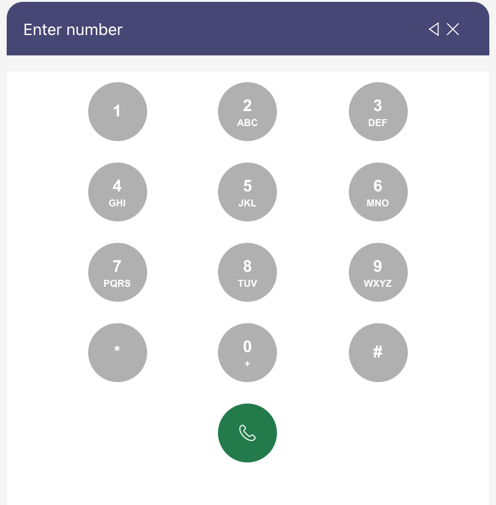
From the Phone App use the integrated dial pad to make a call.
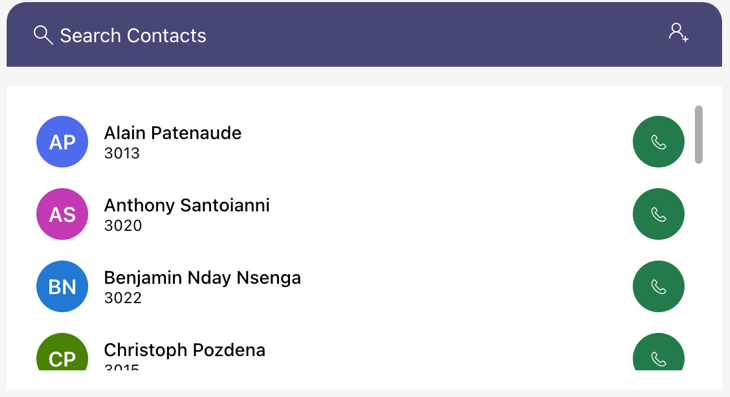
From the Phone App, , find the contact tab on the home screen,
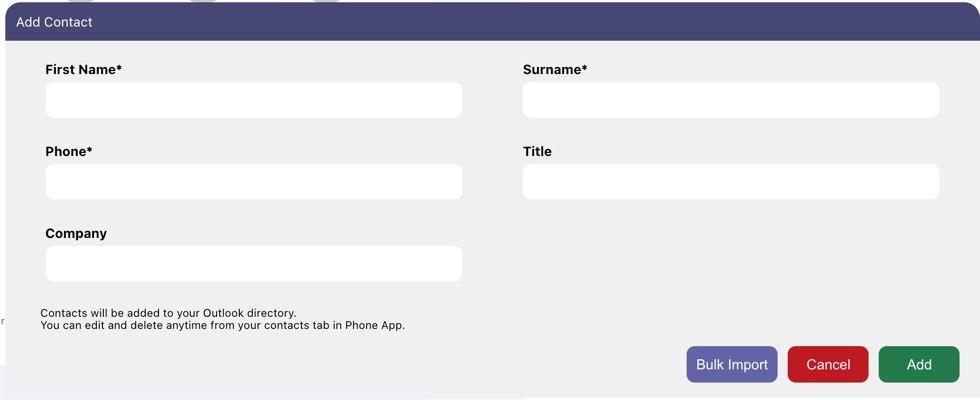
Click the Contact icon in the top left corner and fill in your contacts information.
Contact Voysis Customer Support
Contact Voysis Customer Support to activate the service
Contact Voysis Customer Support to activate the service